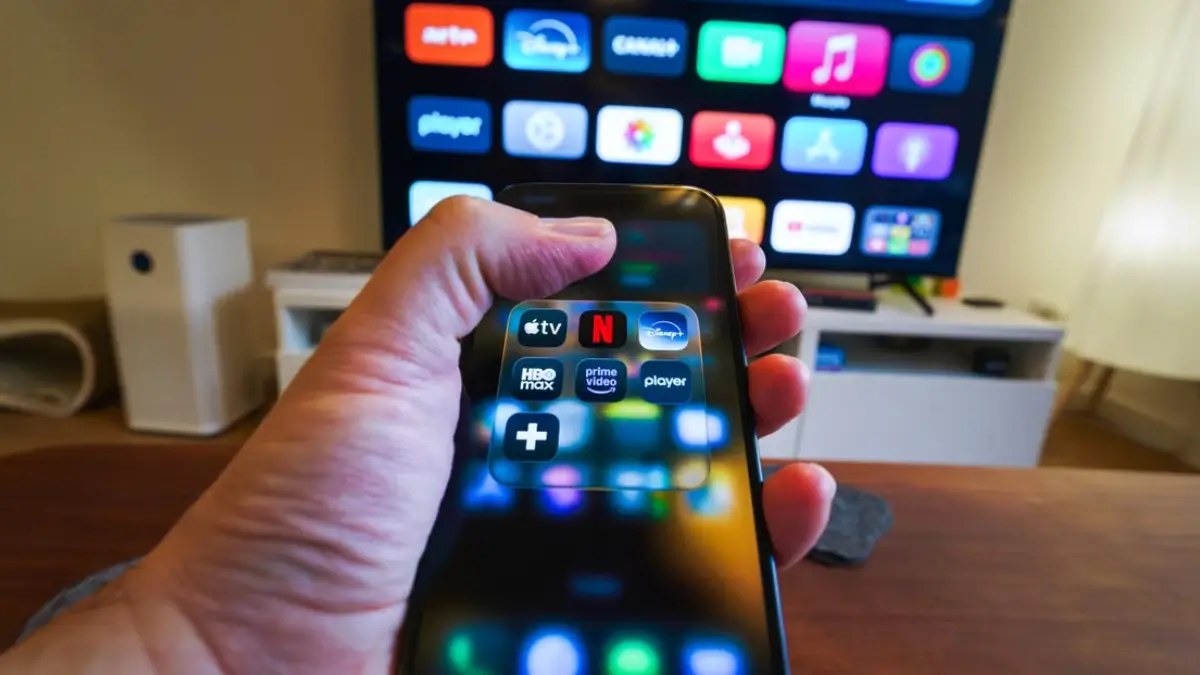
Imagine waking up to an email at 3:00 AM stating that your Netflix account email address was changed to something ending in .ru. You open the app, and sure enough, you’ve been logged out.
Your “Continue Watching” row is now filled with foreign-language soap operas, and your carefully tuned recommendation algorithm is completely ruined.
Credential stuffing and automated account takeovers are big business. Hackers do not just steal streaming accounts for personal entertainment; they bundle them up in bulk and sell lifetime access on digital dark markets for pennies on the dollar.
If you use the same password for your Disney+ account as you do for a dozen obscure retail sites, your digital front door is wide open.
Here are 5 simple, high-impact strategies to lock down your streaming services and boot unauthorized guests out for good.
1. Ditch the “Universal Password” for Unique Master Credentials
Recycling passwords is the single largest vulnerability online today.
When a minor forum or obscure retail website suffers a data breach, cybercriminals use automated tools to try those stolen email and password combinations across every major streaming platform—a technique known as credential stuffing. If you reuse Password123! across multiple platforms, breaking into one service unlocks them all.
Why standard passwords fail
Human memory is naturally bad at generating random data. Most people default to predictable patterns: capitalizing the first letter, adding a familiar pet’s name, or tacking on 2026! at the end. Automated cracking scripts predict these exact patterns in milliseconds.
Instead of trusting your memory, delegate credential security to a dedicated password manager like Bitwarden, 1Password, or Dashlane.
How to fix it:
- Audit your current credentials: Open your browser’s built-in password checker or use a tool like Have I Been Pwned to see if your primary email appears in recent breaches.
- Generate long passphrases: If you refuse to use a password manager, create a random four-word passphrase (e.g.,
purple-turtle-coffee-galaxy). It is virtually uncrackable via brute force yet easy to remember. - Update high-value platforms first: Swap out recycled credentials on your primary streaming accounts immediately. Never use the exact same password for two services.
2. Lock Down Profiles with PINs and Multi-Factor Authentication
A strong password keeps external hackers out, but profile PINs stop opportunistic account freeloaders in their tracks.
Many platforms now offer Multi-Factor Authentication (MFA) via email, SMS, or authenticator apps. Adding an extra verification step ensures that even if a intruder uncovers your password, they cannot gain entry without access to your physical secondary device.
[ Hacker gets password ] ──> [ Asks for 2FA Code ] ──> [ ACCESS DENIED ]Profile-level security matters
If you share an account within a household, setting a profile PIN prevents roommates or family members from accessing your account settings, viewing billing details, or changing core security options.
How to set it up:
- Turn on account MFA: Log into account settings for services like Amazon Prime or Apple TV and enable Two-Factor Authentication under the security tab.
- Lock individual profiles: On Netflix or Hulu, navigate to Account > Profile & Parental Controls, select your profile, and enable Profile Lock. Create a 4-digit PIN.
- Restrict account changes: Turn on options that require password re-entry whenever someone tries to update payment details or add new devices.
3. Perform Regular “Device Audits” and Force Remote Logouts
Streaming apps stay logged in indefinitely across smart TVs, gaming consoles, set-top boxes, and forgotten hotel streaming sticks.
Every device that maintains an active session represents an open door into your account. If you ever logged into a Roku at an Airbnb or left your account running on a friend’s TV, anyone using that hardware still has access to your subscription.
| Platform | Location of Active Device Management | Key Feature |
| Netflix | Account Settings > Security & Privacy | Manage Access and Devices |
| Spotify | Account Overview > Apps & Devices | Sign Out Everywhere |
| Disney+ | Account Settings > Log Out of All Devices | Global Session Termination |
| Max | Settings > Account > Devices | Manage Devices |
Session hijacking explained
When you log in, the streaming server grants your TV or phone a persistent access token so you do not have to type your password every day. If you sell an old smart TV or stream from a public device without signing out, that access token remains valid indefinitely until you manually revoke it.
How to fix it:
- Inspect active sessions: Navigate to your streaming account’s security tab and review the list of signed-in locations, IP addresses, and device types.
- Evict unknown devices: Look for unrecognized locations or hardware models you do not own.
- Nuke all active sessions: Use the Sign Out of All Devices button. This revokes session tokens globally. Afterward, log back in on your personal devices using your newly updated credentials.
4. Audit and Revoke Third-Party App Permissions
Many streaming platforms allow integrations with third-party web services. These range from music recommendation engines and social scrobblers (like Last.fm) to smart-home voice assistants and third-party streaming aggregators.
Every external application authorized to access your account represents a potential vector for exploitation. If that third-party service suffers a security compromise, your linked streaming account could be exposed alongside it.
[ Unsecure 3rd-Party App ] ──( Breached )──> [ Linked Account Vulnerable ]Minimizing your digital footprint
Permissions tend to accumulate over time. An app you authorized three years ago to test a music playlist generator still retains access to your profile data and account tokens today unless you actively revoke its authority.
How to set it up:
- Access third-party permissions: Log into the web interface for services like Spotify, YouTube, or Apple Music, and find the Apps or Connected Services section.
- Review authorized integrations: Examine the list of connected tools, smart speakers, and web apps.
- Revoke old tokens: Click Remove Access or Revoke on any service you do not recognize or no longer use regularly.
5. Identify and Evade Fake Billing Failure Phishing Attempts
Phishing emails targeting streaming subscribers are increasingly sophisticated.
Hackers regularly construct convincing duplicates of official emails from Netflix, Spotify, or Disney+, claiming your payment failed, your credit card expired, or your subscription faces imminent suspension.
┌────────────────────────────────────────────────────────┐
│ SUBJECT: Urgent - Your Subscription Has Been Paused                                                          │
│ FROM: [email protected]                                                               │
│                                                                                                                                                  │
│ We were unable to process your last monthly payment.                                                         │
│ Please update your payment details immediately to                                                               │
│ avoid account cancellation.                                                                                                      │
│                                                                                                                                                  │
│ [ UPDATE PAYMENT DETAILS NOW ]                                                                                       │
└────────────────────────────────────────────────────────┘
The embedded link leads to a malicious replica site designed solely to harvest your login credentials and full credit card details.
How to spot fake billing alerts
Urgency is the primary tactic in social engineering. Scammers create artificial pressure to trigger panic so you act before thinking carefully.
How to fix it:
- Inspect the sender domain: Check the sender’s full email address, not just the display name. Official emails come directly from domain addresses like
@netflix.comor@spotify.com—not generic webmail services or misspelled domains likesupport-netflix-update.com. - Never click embedded update links: If you receive a notification regarding a payment issue, close the email. Open a browser, type the official website URL directly into the address bar, and check your billing status from the account dashboard.
- Inspect link destinations: Hover your mouse cursor over any button inside a suspicious message to preview the actual destination web address without clicking it.
The Master Lockdown Checklist
Securing your entertainment ecosystem requires minimal upkeep once set up correctly. Take five minutes today to run through these essential steps:
- Replace recycled passwords with unique passphrases or credentials generated by a password manager.
- Enable multi-factor authentication and add profile PINs across all shared accounts.
- Purge active sessions using the “Sign Out Everywhere” tool to clear legacy devices and unwanted guests.
- Disconnect outdated third-party app integrations to reduce potential attack surfaces.
- Ignore urgent email payment links—always check billing issues directly within official platform apps or web portals.
Taking these precautions puts you far ahead of automated attack scripts, keeping your viewing history accurate, your payment data safe, and your subscriptions firmly under your control.