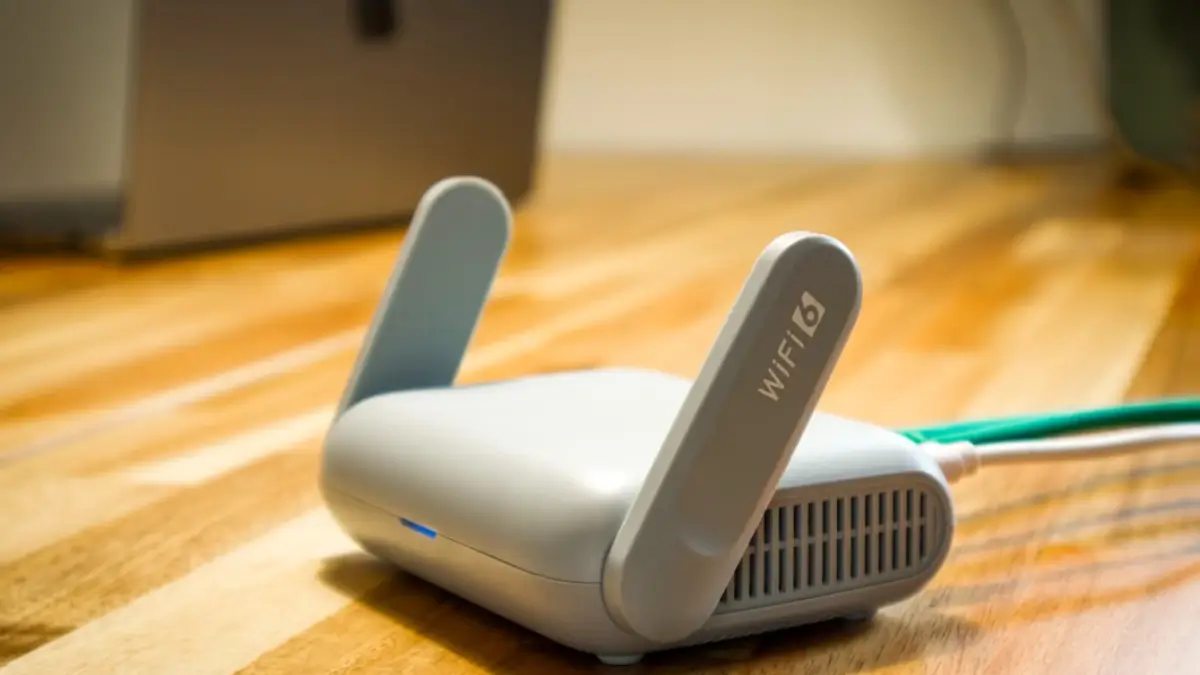
You unbox your brand-new Wi-Fi router, plug in the cables, and connect your phone using the password printed on the sticker underneath. It takes five minutes, everything works, and you never think about that blinking plastic box again.
That blinking box is the front door to your entire digital life.
Every laptop, smartphone, smart TV, baby monitor, and security camera in your home trusts that single device completely. If a remote hacker compromises your router, they do not just steal your Wi-Fi—they sit squarely in the middle of your network. They can rewrite your DNS settings to silently redirect you to fake banking sites, intercept unencrypted traffic, or recruit your router into a global botnet.
Most people leave their routers running on factory settings for years. Hackers know this, and they actively scan the internet looking for unpatched, stock-configured gateways.
Here are 5 simple, high-impact ways to lock down your home router and shut out remote intruders for good.
1. Replace Factory Admin Credentials Immediately
There is a dangerous difference between your Wi-Fi password and your router’s admin password.
Your Wi-Fi password lets devices connect to your wireless network. The admin password lets anyone open the router’s control panel, change network routing, view connected devices, and rewrite security rules. Most manufacturers ship routers with absurdly predictable default admin credentials—like admin/admin or admin/password.
[ STOCK ROUTER CONFIGURATION ]
Any Connected Device ──> Types "192.168.1.1" ──> Username: admin / Pass: admin ──> TOTAL NETWORK CONTROL

[ HARDENED ROUTER CONFIGURATION ]
Any Connected Device ──> Types "192.168.1.1" ──> Unique Master Passphrase ──> FULL ACCESS DENIED
Why sticker credentials aren’t safe
Even if your router came with a unique admin password printed on a bottom sticker, automated scanning tools maintain vast databases of default factory keys generated by serial number algorithms. If a malicious script reaches your router’s login port, default credentials fall in seconds.
How to fix it:
- Access the admin dashboard: Open a web browser on a device connected to your Wi-Fi and type your gateway IP address into the address bar (typically
192.168.1.1or192.168.0.1). - Locate system settings: Navigate to System Tools, Administration, or Security Settings.
- Change the admin password: Create a unique, long passphrase that you do not use anywhere else. Save it in a secure password manager.
2. Disable Remote Management and Universal Plug and Play (UPnP)
By default, your router should only accept administrative logins from devices physically connected to your local network.
However, many routers ship with “Remote Management” or “WAN Access” toggled on. This opens your router’s control interface directly to the public internet, allowing anyone anywhere on Earth to attempt a brute-force login against your gateway.
[ PUBLIC INTERNET ] ──> Remote Management Enabled ──> Router Control Panel Exposed Worldwide
                                                             │
[ SAFE LOCAL-ONLY SETUP ] <── Local Network Only ────────────┘ (WAN Access Blocked)
The UPnP security risk
Universal Plug and Play (UPnP) is a protocol designed to let local devices seamlessly open router ports without manual configuration—great for gaming consoles, but terrible for security. Malicious software inside your network can exploit UPnP to open inbound holes through your firewall without asking for your permission.
How to fix it:
- Shut off Remote Management: Inside your router’s admin panel, search for Remote Management, WAN Web Access, or Remote Admin. Ensure this toggle is explicitly turned Off.
- Disable UPnP: Navigate to Advanced Settings > Network > UPnP and flip the switch to Disabled.
- Forward ports manually: If a specific gaming console or media server requires open ports, set up manual port forwarding rules instead of allowing UPnP to open ports automatically.
3. Automate Firmware Updates and Patch Known Flaws
Routers run specialized operating systems called firmware. Just like your phone or computer, router firmware suffers from software bugs, zero-day vulnerabilities, and security flaws.
When researchers discover a critical router flaw, manufacturers release a firmware update to patch it. If you never update your router, your device remains exposed to public exploits that hackers can execute remotely using off-the-shelf automated attack kits.
| Update Strategy | Maintenance Requirement | Security Protection Level |
| Manual (Forgotten) | Zero effort, high long-term risk | Vulnerable (Exposed to known exploits) |
| Periodic Audits | Checking manufacturer portal quarterly | Moderate (Lags behind patch releases) |
| Automated Updates | Set once and run in background | Optimal (Patches applied as released) |
The danger of unpatched edge devices
Because routers sit directly on the boundary between your home and the wild internet, automated botnet scripts scan public IP ranges 24/7 searching for unpatched firmware versions. Once infected, your router can function normally on the surface while silently participating in DDoS attacks in the background.
How to set it up:
- Enable Auto-Update: Find the Firmware or Software Update tab in your admin settings and toggle on Automatic Updates. Set the update window to run during early morning hours.
- Check manually for legacy gear: If your router lacks auto-updates, download the latest firmware file directly from the manufacturer’s official support page and upload it through the admin portal.
- Replace end-of-life hardware: If your router manufacturer stopped issuing firmware updates for your model years ago, the hardware is officially End-of-Life (EOL). Replace it immediately with a supported model.
4. Quarantine Smart IoT Devices on an Isolated Guest Network
That smart refrigerator, cheap Wi-Fi light bulb, or third-party security camera on your network is almost certainly running primitive, low-security software.
If a hacker compromises a vulnerable smart plug on your primary Wi-Fi network, they can use that breached device as a launching pad to attack your laptop, personal phone, and network-attached storage (NAS) drives on the same subnet.
[ POOR ISOLATION: Single Network ]
Hacker ──> Breached Smart Bulb ──( Same Subnet )──> Access to Personal Laptop & NAS

[ PROPER ISOLATION: Dual Network ]
Primary Network: Laptop & Phone ───( Firewalled )───┐
                                                     ├─ Router
Guest Network:   Smart Devices & Bulbs ──────────────┘ (Quarantined)
Network segmentation made simple
You do not need enterprise networking hardware to segment your network. Almost every modern consumer router features a “Guest Network” option designed to isolate secondary devices from your primary hardware.
How to set it up:
- Enable the Guest Network: Log into your router, find Guest Network, and switch it on.
- Create a separate SSID and password: Give the guest network a distinct name (e.g.,
Home_IoT) and secure it with a strong password. - Enforce isolation: Ensure settings labeled “Allow guests to access local network resources” or “AP Isolation” are toggled Off.
- Migrate smart hardware: Move all smart TVs, streaming sticks, smart home hubs, and internet-of-things devices to the guest network, keeping your primary network strictly for personal computers and phones.
5. Upgrade to WPA3 Encryption and Disable WPS
When you send data over Wi-Fi, it travels through the open air as radio waves. Encryption scrambles those signals so nearby eavesdroppers cannot read your traffic.
WPA2 encryption served well for over a decade, but modern cracking tools can brute-force WPA2 handshakes offline. Upgrading to WPA3 introduces Simultaneous Authentication of Equals (SAE), providing far stronger protection against offline dictionary attacks even if your Wi-Fi password isn’t exceptionally long.
[ VULNERABLE WPS SETUP ]
Attacker ──> Automated PIN Brute-Force ──> Bypasses WPA2 Password ──> ACCESS GRANTED

[ MODERN WPA3 SETUP ]
Attacker ──> WPA3 SAE Encryption + WPS Disabled ──> Brute-Force Impossible ──> ACCESS DENIED
The persistent threat of Wi-Fi Protected Setup (WPS)
WPS was designed to let users connect devices by pressing a physical button or entering an 8-digit PIN. That 8-digit PIN design contains a severe structural flaw: attackers can brute-force it in a matter of hours, bypassing your complex WPA2/WPA3 password entirely.
How to set it up:
- Disable WPS completely: Search your wireless settings for WPS or Wi-Fi Protected Setup and turn it Off.
- Select modern encryption: Under Wireless Security Settings, select WPA3-Personal (or WPA2/WPA3 Mixed Mode if you have older legacy devices that do not support WPA3 yet).
- Disable legacy standards: Turn off outdated options like WEP or WPA-TKIP, which offer virtually zero protection against modern attack tools.
The Master Gateway Lockdown Checklist
Securing your home router requires a few minutes of setup and delivers permanent peace of mind. Run through this quick checklist today:
- Change the factory admin password to a long, unique passphrase stored in your password manager.
- Turn off Remote Management and UPnP to close open backdoors to the public internet.
- Turn on automatic firmware updates or replace outdated End-of-Life hardware.
- Move all smart home devices to an isolated Guest Network to protect your personal computers.
- Switch encryption to WPA3 and completely disable vulnerable WPS PIN access.
Taking these steps transforms your router from an unpatched vulnerability into a fortified firewall, keeping your home network safe from remote intruders.